 Jkoder.com Tutorials, Tips and interview questions for Java, J2EE, Android, Spring, Hibernate, Javascript and other languages for software developers
Toast
A toast notification is a message that pops up on the surface of the window.
Toast waitToast = Toast.makeText(getApplicationContext(), "Please wait...", Toast.LENGTH_LONG);
waitToast.setGravity(Gravity.TOP, 0, 0);
waitToast.show();

AlertDialog
AlertDialog.Builder builder = new AlertDialog.Builder(context);
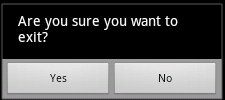
builder.setMessage("Are you sure you want to exit?")
      .setCancelable(false)
      .setPositiveButton("Yes", new DialogInterface.OnClickListener() {
          public void onClick(DialogInterface dialog, int id) {
               MyActivity.this.finish();
          }
      })
      .setNegativeButton("No", new DialogInterface.OnClickListener() {
          public void onClick(DialogInterface dialog, int id) {
               dialog.cancel();
          }
      });
AlertDialog alert = builder.create();
alert.show();
AlertDialog with a List
final CharSequence[] items = {"Red", "Green", "Blue"};
AlertDialog.Builder builder = new AlertDialog.Builder(context);
builder.setTitle("Pick a color");
builder.setItems(items, new DialogInterface.OnClickListener() {
   public void onClick(DialogInterface dialog, int item) {
       String choice = items[item];
       //DO SOMETHING WITH USER CHOICE
   }
});
AlertDialog alert = builder.create();
alert.show();

Creating Custom Dialog using layout XML file
As a developer you can also create customized alert dialogs.
Step 1 – Creating the Dialog XML
<?xml version="1.0" encoding="utf-8"?>
<LinearLayout xmlns:android="http://schemas.android.com/apk/res/android"
android:layout_width="fill_parent" android:layout_height="fill_parent">
          <EditText android:text="" android:id="@+id/EditText01"
                   android:layout_width="match_parent"
android:layout_height="wrap_content"></EditText>
</LinearLayout>
* The dialog layout xml file is placed together with all the layout xml files under <project_path>/res/layouts
Step 2 – Using it in code (implemented in the activity)
AlertDialog.Builder alt_bld = new AlertDialog.Builder(this);
LayoutInflater factory = LayoutInflater.from(this);
final View textEntryView = factory.inflate(R.layout.input, null);

alt_bld.setView(textEntryView).setCancelable(true).setNegativeButton("Cancel",
                   new DialogInterface.OnClickListener() {
                             public void onClick(DialogInterface dialog, int id) {
                                      dialog.cancel();
                             }
                   }).setPositiveButton("OK",myOnClickListener);

AlertDialog alert = alt_bld.create();
alert.setTitle(title);
alert.setIcon(R.drawable.icon);
alert.show();
